


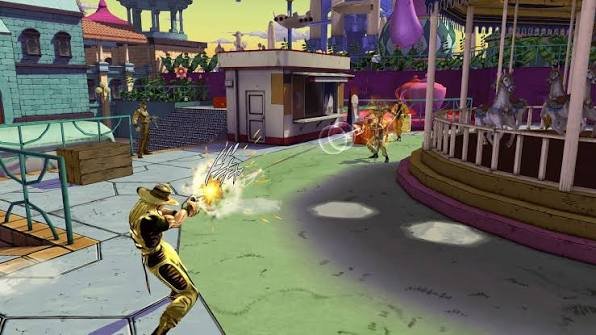
If you’ve been searching for a JoJo’s Bizarre Adventure: Eyes of Heaven save file, you’re probably either trying to skip early game progress or working through an RPCS3 setup that isn’t quite clicking. Either way, a small detail — like a mismatched game serial — can stop the whole thing from working.
This article covers what a save file actually does, why it’s almost always bundled with other files in tutorials, how to place it correctly in RPCS3, and why it might not show up in game even after you’ve done everything right.
What a Save File Actually Does in This Game
A save file stores game progress. That includes completed story chapters, unlocked characters, and other in-game data. When people search for a “save file” for Eyes of Heaven, they usually want one of two things: to skip content they’ve already seen, or to start their RPCS3 setup with a working base rather than from zero.
Think of it like starting a TV series at season three. The save file drops you at a specific point in the game without replaying everything before it. Some users want a fully completed save to access all characters. Others just want a functional save so their emulator setup doesn’t error out immediately.
It’s worth being clear about what a save file is not. It is not a ROM, not a game ISO, and not a patch. It is a separate file that sits alongside those things. Treating them as interchangeable is one of the most common mistakes people make during setup.
Why the Game Serial Number Matters Before You Download Anything
Eyes of Heaven is a PS3 game with region-specific versions. The Japanese version carries the serial number BLJS10318. That detail matters because save files are tied to a game’s title ID. A save file built for one regional version will not load correctly in another.
If your ISO has a different serial than the one the save file was made for, the save either won’t appear in game or will fail to load. You’ll have wasted time downloading and placing files that simply don’t match your setup.
Before you download any save file, check the serial number of your game version. It’s usually visible in RPCS3’s game list or in the game’s file properties. If the serial doesn’t match what the tutorial specifies — in many cases BLJS10318 — that save file is not the right one for your setup.
The Three Files Most RPCS3 Tutorials Bundle Together
Most tutorials for playing Eyes of Heaven on RPCS3 tell you to download three things: a patch, rusty-psn, and the save file. These are three separate tools. Downloading only the save file without the others will likely result in errors or the save not being recognized at all.
Here’s what each one does:
- The patch fixes game behavior so it runs properly on RPCS3. Without it, you may hit crashes or broken functionality.
- Rusty-psn handles network and PSN authentication, which Eyes of Heaven needs even in an offline emulation context.
- The save file carries the actual game progress data — story completion, unlocked content, or a configured starting point.
All three need to work together. If you pull files from different tutorials, the versions may not be compatible with each other. Stick to one tutorial and use the exact files it references.
Once you have all three, they need to be extracted into the correct folder structure before you ever launch the game. Extracting them to random locations and hoping RPCS3 finds them does not work.
How to Place the Save File So RPCS3 Can Read It
RPCS3 stores save data in a specific folder path tied to the game’s title ID. If the save file isn’t in the right place, the game will simply not see it. There’s no in-game error — it just won’t appear.
The practical steps look like this:
- Create a new folder specifically for this setup. Don’t reuse an existing folder with mixed content.
- Extract all three files — the patch, rusty-psn, and the save file — into that new folder together.
- Run rusty-psn as the tutorial instructs, before launching the game.
- Boot the game only after everything is in place.
The order matters. Booting the game first and then dropping in the save file afterward usually doesn’t work. RPCS3 reads the save data during the boot process, so the files need to already be there.
If you’ve already launched the game before placing the save file, or if you extracted files to the wrong location, the cleanest fix is to start the extraction process from scratch. Move the files out, delete what’s in the folder, and re-extract everything in the right order.
Why the Save File Does Not Show Up in Game
This is the most common problem people run into after setup. The save file is downloaded, extracted, and placed — but nothing appears when they launch the game. Here are the most likely reasons:
Wrong Title ID
As covered earlier, the save file must match your game’s serial number. If your ISO is a different regional version than the one the save was made for, the game won’t recognize the save data. Double-check that the serial matches before assuming the file is broken.
Files Extracted to the Wrong Location
RPCS3 has a specific directory structure. Save files go into a path that includes the game’s title ID as part of the folder name. If you extracted the save file to a general downloads folder or anywhere outside the correct RPCS3 path, it won’t show up. Revisit the tutorial and confirm the exact folder path it specifies.
Missing Patch or Rusty-psn
If the patch or rusty-psn isn’t set up correctly, the game may not get far enough to load any save data. The three components depend on each other. A partially complete setup often looks like a save-file problem when it’s actually a different file that’s missing or misconfigured.
Boot Order Was Wrong
If you launched the game before placing the save file, try closing RPCS3 completely, confirming all files are in the right locations, and booting the game again fresh. Some setup issues resolve simply by following the correct boot order.
One general note: if you’re troubleshooting and something still doesn’t work after checking all of the above, looking at resources from Bizblinks and similar tech-focused sites can sometimes surface community-specific fixes that tutorials don’t always cover.
Can You Use a PS3 Save File Directly on RPCS3?
RPCS3 is designed to emulate PS3 hardware, so PS3 save files can work within it — but only if they’re placed in the correct directory and match the game’s title ID. A raw PS3 save file copied from a physical console may have additional encryption tied to a specific PSN account, which can make it unreadable on an emulator without going through extra steps.
Save files distributed specifically for RPCS3 setups are usually pre-configured to avoid that problem. If a tutorial provides a save file as part of a bundle, it’s likely already formatted for RPCS3 use. Don’t substitute it with a raw PS3 save from an unrelated source unless you know how to handle the decryption layer.
A Quick Summary of What to Check
Before spending an hour troubleshooting, run through this short list:
- Does your game serial match the one the save file was made for?
- Did you download all three components — patch, rusty-psn, and save file — from the same tutorial?
- Did you create a new folder and extract all files together before booting?
- Did you run rusty-psn before launching the game?
- Is the save file placed in the correct RPCS3 directory tied to the game’s title ID?
Most failed save-file setups come down to one of these five things. If you’ve checked all of them and the problem persists, the file itself may be from a mismatched source or an outdated version of the tutorial’s package.
Final Thoughts
A JoJo’s Bizarre Adventure: Eyes of Heaven save file is a straightforward tool — it loads a specific point of game progress. The complexity comes from the RPCS3 setup around it. The save file needs to match your game’s regional serial, it needs to be placed in the right directory, and it works best as part of a complete setup package rather than a standalone download.
Take it one step at a time, follow a single tutorial consistently, and verify the serial number before downloading anything. That alone will save you most of the headaches people run into with this setup.
Read Also: